







Apple officially launched iOS 27, and an annoying security feature is already getting in the way. Paste permissions are riddled throughout the operating system, and although they’re designed to protect you, they’re also annoying. Luckily, there’s a way to make them disappear ... but should you?
You copy and paste all kinds of data on your phone — passwords, banking details, text messages, and even photos. In case you didn’t know, everything you copy is temporarily stored on your device and iCloud in the “universal clipboard,” waiting patiently until you paste it into another app.
You should only disable paste permissions for apps you trust with your data.
Prior to 2022, the apps you open on your phone could secretly grab a copy of the most recent data in your clipboard and save it for themselves without telling you they took it. Now, that doesn’t mean every app was complicit in this rogue behavior, but there were several big-name offenders, including TikTok, the New York Times, and PUBG Mobile.
To combat the egregious data grab, Apple implemented copy-and-paste permissions in iOS 16.1. This initial version asked users to confirm detected paste commands when an app secretly tried to take data from the clipboard. Otherwise, these permissions ultimately stayed out of the way, serving as silent sentinels that popped up only when they needed to protect your data.
RELATED: New spyware targets iPhones. Are you at risk?

Things are different today. In iOS 27, Apple took the copy-and-paste permission system and cranked it up into high gear. Now when you paste content into a supported app, you receive a permission alert to confirm your decision, whether the app was trying to steal data or not.
If you’re someone who pastes content often, these permissions get very old very fast. The good thing is that there’s a way to make them disappear, but that process is also annoying.
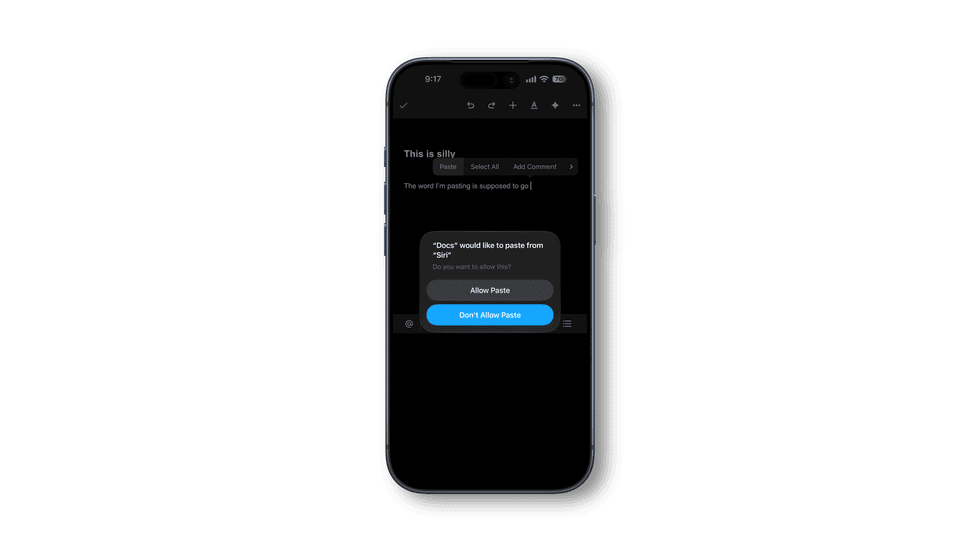
Paste permissions exist on a per-app basis, which means that the only way to turn them off is to dive deep into your Settings app and wrestle them into submission one at a time. Here’s an example:
Google Docs is a paste permission fiend. It will incessantly raise a red flag when pulling content into a document from another app. Considering Google’s track record with data tracking, the extra protection is nice, but it’s also disruptive.
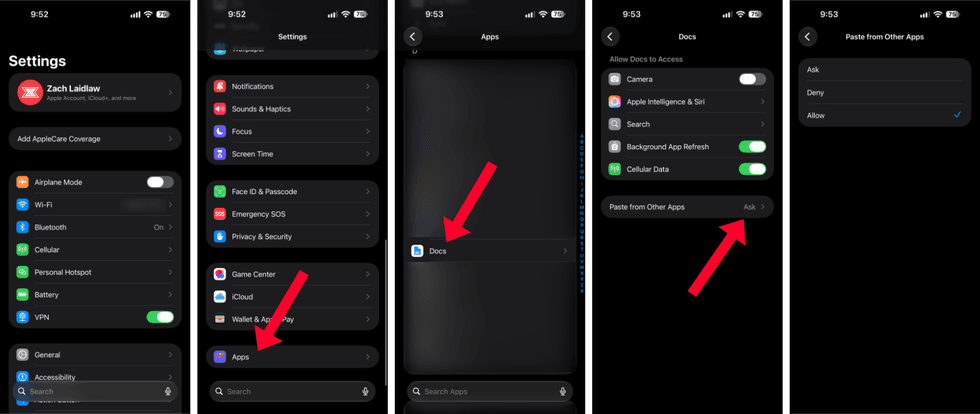
To turn off paste permissions, open the Settings app on iPhone, select “Apps” at the bottom of the screen, then choose “Docs” from the app list. At the bottom of this next page, you’ll find “Paste from Other Apps.” Select this to see three available options.
- The default “Ask” option will send a paste alert every time you try to paste content from another app. This is the annoying setting we’ll change in a moment.
- As you would expect, “Deny” blocks all paste attempts, whether they were intentional or not.
- Lastly, “Allow” lets you paste content freely, no alerts or permissions necessary.
Switch the setting from “Ask” to “Allow,” and you’re all set. The annoying app — in this case Google Docs — will no longer ask for permission every time you share content from your clipboard.
Here’s where things get a little tricky. Some apps naturally don’t have paste permissions while others do. Historically, this option only shows up after an app tries to copy your clipboard automatically.
By changing your settings from “Ask” to “Allow,” you’re essentially permitting an app to copy your clipboard anytime you open the app, both manually and automatically. Again, this doesn’t mean the apps in your phone will abuse this privilege, but they theoretically could.
For this reason, you should only disable paste permissions for apps you trust with your data. Otherwise, it’s best to keep the extra protection in place.
Like Blaze News? Bypass the censors, sign up for our newsletters, and get stories like this direct to your inbox. Sign up here!
Continue reading...
[H/T Blaze Media]


